.svg "Connex Ecommerce Logo-white (1)")
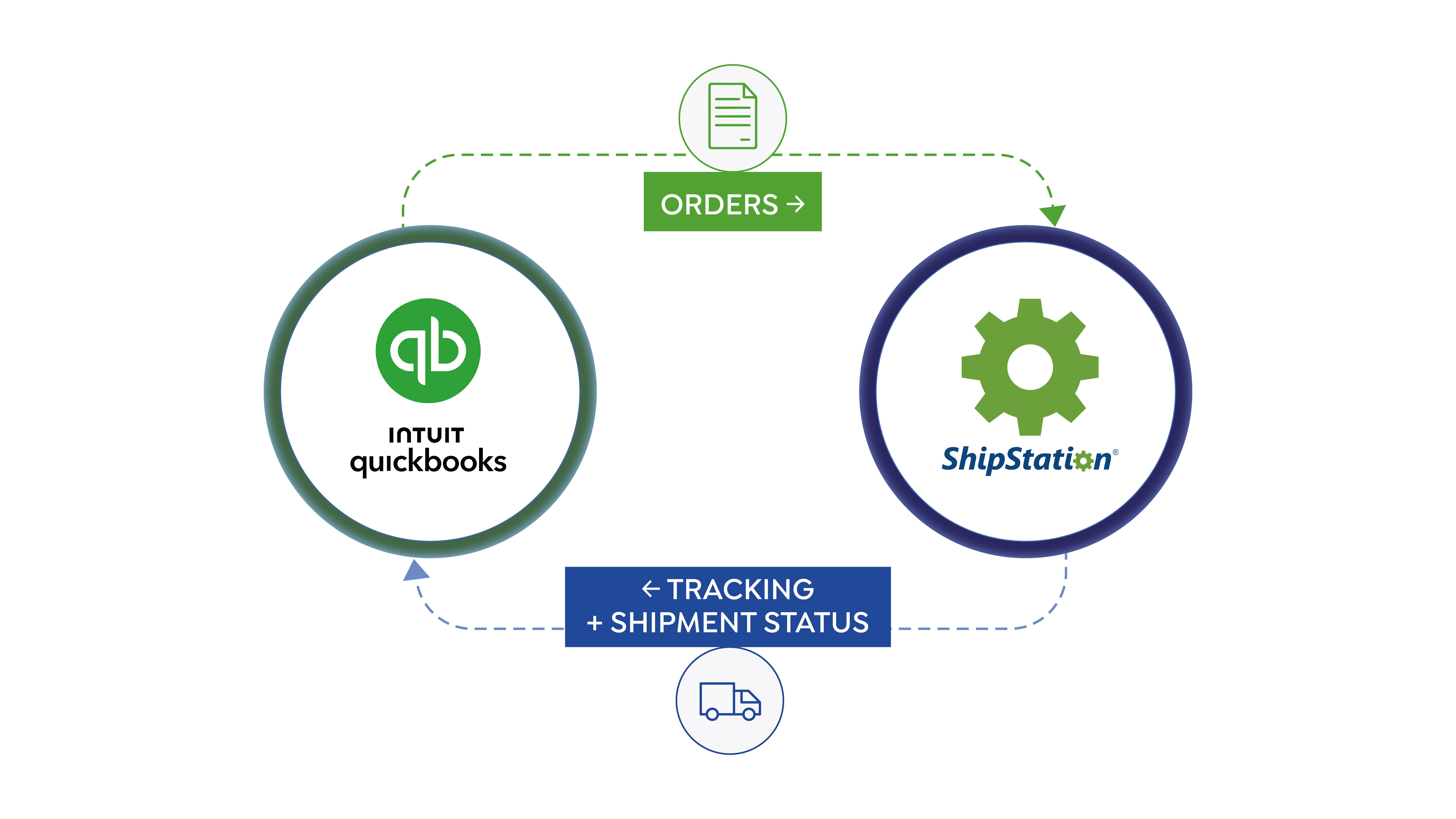

When ShipStation splits one customer order into multiple shipments, QuickBooks does not automatically know how to handle it. The result is a cascade of accounting problems: duplicate invoices, double-counted revenue, open balances that never close, and reconciliation errors that take hours to untangle.
This guide answers the most common QuickBooks accounting questions for split shipments, directly and in plain language. Whether you are dealing with partial fulfillment, multi-package orders, or canceled shipments mid-fulfillment, each section below gives you a concrete answer you can act on.
What you will find in this guide:
- How QuickBooks sales orders and invoices should be structured when one order ships in multiple shipments
- Why split shipments cause double-counted revenue and how to stop it
- How to prevent duplicate invoices when ShipStation splits an order
- Whether custom rules can control how partial shipments are recorded
- How to keep unshipped items open in QuickBooks after a partial shipment
- What happens to accounting when a partially shipped order is canceled or refunded
How QuickBooks Sales Orders and Invoices Should Be Structured When One Order Ships in Multiple Shipments
When one customer order ships in multiple shipments, the correct structure in QuickBooks is one sales order per order, with separate invoices created for each shipment. Each invoice closes out the line items that shipped in that specific shipment. The sales order stays open until all items have shipped and all invoices have been created.
The wrong approach is letting your integration create a new sales order each time ShipStation fires a shipment notification. That is what causes duplicate records and inflated revenue.
Key takeaway: One order = one QuickBooks sales order. Invoices are created per shipment and close against that sales order as items fulfill.
How Connex Handles This
Connex creates one sales order in QuickBooks and then generates individual invoices that match each ShipStation shipment. If items A, B, and C are on an order and B and C ship together while A ships later, Connex can either create one invoice for B and C when that shipment fires and a second invoice for A when it ships, or create a single invoice for everything once the order is fully shipped. This behavior is configurable: users can turn the multi-invoice feature on or off depending on their billing workflow.
What matters is that every invoice ties back to the same source sales order, not to individual shipment events in isolation.
Note on packages vs. shipments: The number of physical packages in a shipment does not affect how Connex creates records. What matters is the shipment itself. If three boxes ship under one tracking number as a single shipment, Connex treats that as one shipment event and creates one invoice.
Why Split Shipments Cause Double-Counted Revenue in QuickBooks
Split shipments cause double-counted revenue in QuickBooks when an integration creates a new sales order for every shipment event instead of tracking them back to the original order. If a $500 order ships in two separate shipments and your integration creates a new sales order each time, QuickBooks records $1,000 in revenue for a single sale.
This is one of the most common and damaging accounting errors for ecommerce businesses running high order volumes.
Why It Happens
ShipStation generates a separate shipment confirmation for each fulfillment event. Many basic integrations listen for those shipment events and trigger sales order creation each time one fires. Without logic to check whether a record already exists for that order number, the integration creates duplicates.
Several specific scenarios make this worse:
- Orders split across two warehouses, each generating its own shipment event
- A 3PL ships part of an order and your own warehouse ships the rest
- A user edits the order number and resyncs the sale, causing the integration to treat it as a new transaction it has never seen
- Manual data entry errors, where someone reads ShipStation, determines what shipped, and creates an invoice attached to a sales order without checking for an existing record
Important: Connex can detect duplicates when the order number in ShipStation matches the order number in QuickBooks. If orders are entered manually or order numbers are changed, that matching logic breaks down and duplicates can still occur.
What the Revenue Impact Actually Looks Like
Let's put a number on it. If your business does $100,000 in monthly revenue and 200 orders per month are affected by duplicate syncs at an average order value of $500, QuickBooks would show $200,000 in revenue instead of $100,000. That is a $100,000 overstatement in a single month. Your P&L, sales tax filings, and cash flow projections are all built on a number that is wrong by 100%.
At that scale, the error does not stay invisible for long, but untangling it takes significant time from your accounting team.
How to Prevent It
The fix requires order-level deduplication logic in your integration:
- Before creating a new sales order, check QuickBooks for an existing record tied to that order number
- If one exists, create an invoice against it rather than a new sales order
- If none exists, create the sales order and tag it with the source order ID so future shipment events can match against it
- Ensure no one edits order numbers mid-process, as that breaks the matching logic entirely
How to Prevent Duplicate Invoices When ShipStation Splits One Order into Several Shipments
To prevent duplicate invoices, your integration must use the order number as the primary key when writing to QuickBooks, not the shipment ID. Every time ShipStation sends a shipment notification, the integration should look up whether a QuickBooks sales order already exists for that order number before creating anything new.
Here is the logic that prevents duplicates:
|
Step |
What the integration checks |
What it does |
|
1 |
Does a QuickBooks sales order exist for this order number? |
If yes, create an invoice against it. If no, create the sales order first. |
|
2 |
Are all line items on this order now shipped? |
If yes, mark the sales order as closed. If no, leave it open. |
|
3 |
Has the same shipment ID already been processed? |
If yes, skip it. If no, process and log it. |
Common Causes of Duplicate Invoices
- Integration triggers on shipment events rather than order events
- No deduplication check before sales order creation
- Multiple integration instances running simultaneously, common after re-installations or migrations
- Webhook retries from ShipStation sending the same event twice
- A user edits the order number in ShipStation or QuickBooks and resyncs, causing the integration to treat it as a brand-new transaction
What to Audit If You Already Have Duplicates
- Pull all QuickBooks sales orders from the past 90 days and filter for duplicate order numbers
- Compare totals against your ShipStation order totals to identify inflated amounts
- Void the duplicate records (do not delete them, as deletion removes the audit trail)
- Reconfigure your integration to use order-level matching before re-enabling the sync
Key takeaway: Duplicate invoices are always a configuration problem, not a ShipStation problem. The fix lives in how your integration maps shipment events to QuickBooks records.
Can Custom Rules Determine How Partial Shipments Are Recorded in QuickBooks?
Yes. Custom rules can control key aspects of how partial shipments are recorded in QuickBooks, including when invoices are created, how customers and products map between systems, how shipping costs are assigned, and how addresses are handled. This level of control requires an integration platform that supports conditional business logic, not a basic sync tool.
What Connex Can Control
A well-configured Connex integration can apply rules such as:
- Customer mapping: Control how customers in ShipStation map to customers in QuickBooks, including handling mismatches and new customer creation
- Product mapping: Define how SKUs and product names map between ShipStation and QuickBooks, including custom field mappings for items that differ between systems
- Shipping cost mapping: Adjust how shipping costs are recorded on a per-customer basis, so different customers can have shipping mapped to different QuickBooks accounts or line items
- Address handling: Control how ship-to addresses map from ShipStation to QuickBooks, which matters especially for hand-entered orders where ShipStation does not require a billing address
Pre-Shipment Sync: A Note on Timing
Connex also supports syncing sales to QuickBooks before shipment occurs. This creates the sales order in QuickBooks as soon as the order is placed, without waiting for a shipment trigger. The tradeoff is that inventory in QuickBooks is decremented at the time of sync, before the items have actually shipped. Whether this is acceptable depends on how your business tracks inventory and when you want financials to reflect a sale.
Key takeaway: Custom rules are what separate a purpose-built integration from a generic sync. Connex gives you control over customer mapping, product mapping, shipping cost assignment, and address handling. If your current tool does not support this kind of configuration, you are managing those exceptions manually.
Can an Integration Keep Unshipped Items Open in QuickBooks After a Partial Shipment?
Yes. When configured correctly, Connex keeps the QuickBooks sales order open after a partial shipment and closes line items progressively as each shipment is invoiced. The sales order reflects what has and has not been fulfilled, and it closes automatically when the final shipment is invoiced.
This matters most for B2B sellers, wholesale distributors, and any business where customers or your AR team needs to see exactly what is outstanding on an account.
How It Works in Practice
When ShipStation ships part of an order, Connex identifies which specific items were included in that shipment and creates an invoice for those items against the open sales order. The remaining line items stay on the sales order as open until their shipment fires. Each subsequent shipment creates another invoice, closing more items off the sales order, until the order is fully fulfilled.
What Connex tracks today: Connex can track which items shipped, but does not currently track partial quantities on a single line item. If item A was ordered in a quantity of 10 and only 6 ship in the first shipment, the current workflow handles this through multiple invoices tied to the same sales order rather than splitting a single line item's quantity.
What Happens Without This Capability
Without sales-order-level tracking, most basic integrations either close the entire sales order after the first partial shipment (leaving unshipped items with no accounting record) or leave the entire sales order open with no indication of what has already been invoiced. Neither outcome is workable for businesses with complex fulfillment or net-term billing.
The practical implication: If your integration cannot track fulfillment at the item level against a sales order, your accounts receivable will not accurately reflect what is outstanding. Manual reconciliation after every partial shipment run is the inevitable result.
What Happens When a Partially Shipped Order Is Canceled or Refunded?
When a partially shipped order is canceled or refunded, QuickBooks needs to reflect two separate realities: the items that shipped (a completed sale) and the items that did not ship (which require a credit memo to offset the invoice or sales order balance). How this is handled depends on where in the fulfillment process the cancellation occurs.
How Connex Handles Cancellations
When an order is canceled in Connex, the integration creates a credit memo in QuickBooks to offset the balance of the existing invoice. Connex does not remove line items from an invoice. Instead, the credit memo is the mechanism that brings the balance to zero for the canceled portion.
For a partially shipped order where only some items were canceled, Connex creates a credit memo for the canceled items specifically, not for the full order amount.
Important: The credit memo feature in Connex can be turned on or off. Many users choose to disable it and handle credit memos manually, particularly in workflows where refund approval requires a separate review step. If your team manages returns and cancellations outside of the integration, make sure this setting reflects your actual process.
Scenario Reference
|
Situation |
QuickBooks action |
Common mistake |
|
Cancel unshipped items after partial shipment |
Credit memo for the canceled items |
Creating a credit memo for the full order amount |
|
Full refund after partial shipment |
Credit memo for shipped items, close or void the sales order remainder |
Leaving the sales order open with no offsetting record |
|
Return of shipped goods |
Credit memo tied to the original invoice |
Creating a new invoice for the return transaction |
What to Watch For
- Confirm that your integration does not re-sync a canceled order as a new transaction after the cancellation is processed
- If the credit memo feature is disabled in Connex, ensure your team has a documented manual process for creating credit memos in QuickBooks
- For returns of shipped goods, verify that any return record in ShipStation does not trigger a duplicate refund sync
Key takeaway: Every cancellation or refund on a partially shipped order requires a deliberate QuickBooks action tied to the specific items and amounts involved. A generic "cancel order" trigger without custom logic will not handle this correctly.
Getting This Right Requires More Than a Basic Integration
Every accounting problem covered in this guide, from duplicate sales orders to stranded open balances to refund mismatches, shares a common root cause: the integration treating each ShipStation shipment event as an independent transaction instead of understanding the full order lifecycle.
Basic sync tools are built for simple workflows. One order ships once, one invoice gets created, done. The moment fulfillment gets more complex, those tools break down and the cleanup lands on your accounting team.
Connex is designed specifically for this complexity. It tracks orders across multiple shipments, applies configurable rules to control when and how QuickBooks records are created, maintains item-level fulfillment status against a single sales order, and handles edge cases like cancellations and refunds through credit memos rather than requiring manual line-item edits.
If your team is spending hours each month reconciling split shipment errors in QuickBooks, that is a configuration problem with a solvable answer.
Talk to a Connex integration expert to see how your specific ShipStation and QuickBooks workflow can be automated correctly from the start.


